Smart Outlet Wont Connect To Wifi
When your smart outlet, such as the Kasa Smart Plug Ultra Mini, won’t connect to Wi-Fi, it can be frustrating. This guide will help you troubleshoot the issue step-by-step, ensuring you can get your smart outlet up and running smoothly. Always remember to follow safety precautions when dealing with electrical devices.
Disclosure: As an Amazon Associate I earn from qualifying purchases at no cost for you.
Editor’s Pick

Kasa Smart Plug Ultra Mini 15A, Smart Home Wi-Fi Outlet Works with Alexa, Google Home, No Hub Required, UL Certified, 2.4G WiFi Only, 1-Pack(EP10), White
- Voice control: Kasa smart plugs that work with Alexa and Google Home Assistant. Enjoy th…
- Easy set up and use: 2.4GHz Wi-Fi connection required. Plug in, open the Kase app, follo…
- Scheduling: Use timer or countdown schedules set your smart plug to automatically turn o…
What You’ll Need
- Smart outlet (e.g., Kasa Smart Plug Ultra Mini)
- Smartphone or tablet with the appropriate app installed
- Access to a stable 2.4GHz Wi-Fi network
- Wi-Fi password
- Router and modem
Step-by-Step
- Check Wi-Fi Compatibility: Ensure your smart outlet only connects to 2.4GHz Wi-Fi networks, as many smart plugs do not support 5GHz.
- Power On the Outlet: Plug the smart outlet into a wall socket and ensure it is powered on. Look for a light indicator that shows it’s ready for setup.
- Reset the Smart Outlet: If it’s not connecting, reset the outlet by holding down the reset button (if available) for 5-10 seconds until the light blinks. This will clear any previous settings.
- Open the App: Launch the app associated with your smart outlet (e.g., Kasa app for Kasa Smart Plugs). Ensure you are logged into your account.
- Add Device: Follow the app prompts to add a new device. Select the smart outlet type and ensure you allow the app to access your Wi-Fi settings.
- Enter Wi-Fi Credentials: Input your 2.4GHz Wi-Fi network name and password. Double-check for any typos.
- Connect: Wait for the app to establish a connection. This may take a few moments. Ensure your smartphone is connected to the same Wi-Fi network during this process.
- Test the Connection: Once connected, test the outlet by turning it on and off through the app. Confirm that it responds correctly.
Pro Tips for Better Results
Kasa Smart Plug Ultra Mini 15A, Smart Home Wi-Fi Outlet Works with Alexa, Google Home, No Hub Required, UL Certified, 2.4G WiFi Only, 1-Pack(EP10), White
- Voice control: Kasa smart plugs that work with Alexa and Google Home Assistant. Enjoy th…
- Easy set up and use: 2.4GHz Wi-Fi connection required. Plug in, open the Kase app, follo…
- Scheduling: Use timer or countdown schedules set your smart plug to automatically turn o…
- Ensure your router is functioning properly and is within range of the smart outlet.
- Consider using a Wi-Fi extender if the signal is weak in the area where the outlet is located.
- Keep the app updated to the latest version for optimal performance.
- Try to limit the number of devices connected to your Wi-Fi during setup to avoid congestion.
Common Mistakes
- Connecting to 5GHz Wi-Fi instead of 2.4GHz.
- Entering incorrect Wi-Fi credentials.
- Not resetting the outlet before attempting to connect.
- Forgetting to enable location services for the app, which might be required for setup.
Troubleshooting
- If the outlet doesn’t connect, try relocating it closer to the router.
- Reboot your router and attempt the connection process again.
- Check if your router has MAC address filtering enabled, which may block the outlet from connecting.
- Consult the app for specific error messages and follow the recommended actions.
Maintenance / Next-Time Checklist
- Ensure your Wi-Fi network is stable and working properly.
- Keep the app updated for the best performance.
- Regularly check the outlet for any physical damage or wear.
- Document your Wi-Fi credentials in a secure place for future reference.
Recommended Products & Tools
- Wi-Fi Extender: Helps boost the signal strength to reach your smart outlet.
- Smartphone with App: Essential for setting up and controlling the smart outlet.
- Surge Protector: Protects your smart outlet and the devices plugged into it from power surges.
- Smart Home Hub: If you have multiple devices, a hub can help manage them more efficiently.
FAQ
- Why is my smart outlet blinking?
A blinking light usually indicates that the outlet is in setup mode or trying to connect to Wi-Fi. - Can I use my smart outlet without a smartphone?
Most smart outlets require a smartphone app for initial setup and control. - What should I do if the app crashes during setup?
Restart your smartphone and try the setup process again. - Can I connect multiple smart outlets at once?
Yes, but it’s advisable to connect them one at a time for easier troubleshooting if issues arise. - What if my Wi-Fi connection is stable but the outlet still won’t connect?
Ensure the outlet is reset and follow the setup steps again, checking for any firmware updates in the app.
GHome Smart Plug, WiFi Smart Plugs Compatible with Alexa and Google Home, Smart Outlet Timer with APP Remote Control, 2.4GHz Wi-Fi Only, No Hub Required, ETL FCC Listed, White

- Stability Upgrade Quick Connection:Supports Bluetooth or WiFi connection.The improved Wi…
- Hand-Free Voice Control:Smart plugs that work with Alexa and Googel Assistant. Just give…
- APP Remote Control From Anywhere:You also can control your outlet timers anywhere anytim…
Wrap-Up
Getting your smart outlet connected to Wi-Fi can sometimes be a challenge, but following these steps will guide you through the process. Remember to check your Wi-Fi settings and keep your smart outlet firmware updated. With a little patience, you’ll be able to enjoy the convenience of your smart home devices in no time.
Recommended Products & Tools
Kasa Smart Plug Ultra Mini 15A, Smart Home Wi-Fi Outlet Works with Alexa, Google Home, No Hub Required, UL Certified, 2.4G WiFi Only, 1-Pack(EP10), White
- Voice control: Kasa smart plugs that work with Alexa and Google Home Assistant. Enjoy th…
- Easy set up and use: 2.4GHz Wi-Fi connection required. Plug in, open the Kase app, follo…
- Scheduling: Use timer or countdown schedules set your smart plug to automatically turn o…
GHome Smart Plug, WiFi Smart Plugs Compatible with Alexa and Google Home, Smart Outlet Timer with APP Remote Control, 2.4GHz Wi-Fi Only, No Hub Required, ETL FCC Listed, White

- Stability Upgrade Quick Connection:Supports Bluetooth or WiFi connection.The improved Wi…
- Hand-Free Voice Control:Smart plugs that work with Alexa and Googel Assistant. Just give…
- APP Remote Control From Anywhere:You also can control your outlet timers anywhere anytim…
GHome Smart Plug, WiFi Smart Plugs Work with Alexa and Google Home, Smart Outlet Timer with APP Remote Control, 2.4GHz Wi-Fi Only, No Hub Required, ETL FCC Listed, White

- Stability Upgrade Quick Connection:Supports Bluetooth or WiFi connection.The improved Wi…
- Hand-Free Voice Control:Smart plugs that work with Alexa and Googel Assistant. Just give…
- APP Remote Control From Anywhere:You also can control your outlet timers anywhere anytim…
Govee Smart Plug, WiFi Plugs Work with Alexa & Google Assistant, Smart Outlet with Timer & Group Controller, WiFi Outlet for Home, No Hub Required, ETL & FCC Certified, 2.4G WiFi Only, 4 Pack

- Stability Upgrade: Supports Bluetooth or WiFi connection, which is more stable and faste…
- Smart Voice Control: WiFi Plugs Work with Amazon Alexa and Google Assistant, so you can …
- Scheduling & Group Controller: Create customized schedules to power your electronic appl…
EIGHTREE Smart Plug, WiFi Outlet Works with Alexa & Google Home, Smart Home Socket with Remote Control & Timer Function, 2.4GHz WiFi Only, 4 Packs

- Warm Tips: To use Alexa and Google Home for voice control, please connect the plug with …
- Simplified Setup: Our upgraded smart plug makes connecting a breeze. Just open the Smart…
- Voice Control: Works with Alexa and Google Assistant, but requires setup through the Sma…
EIGHTREE 15A Smart Plug, Wi-Fi & Bluetooth Smart Outlet for High-Power Home Appliances, Works with Alexa & Google Home, Easy Setup, Timer & Remote Control, FCC & ETL Certified, 2.4GHz Wi-Fi Only
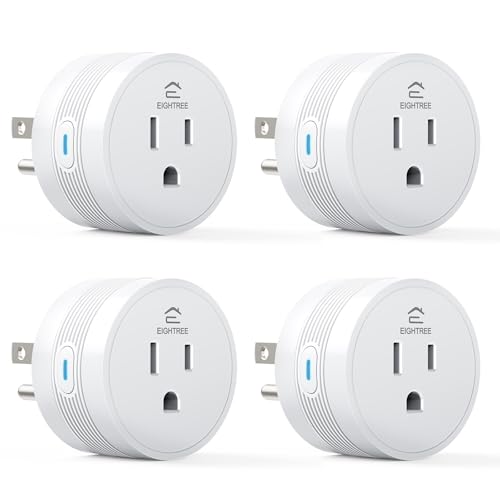
- [15A High-Load Smart Plug for Home Appliances]: Designed for high-power devices such as …
- [Faster & Easier Setup with Bluetooth + Wi-Fi]: Connect instantly via Bluetooth during s…
- [Works with Alexa & Google Home]: Use voice commands to turn devices on or off, or autom…
