How To Set Guest Codes Safely On Smart Locks
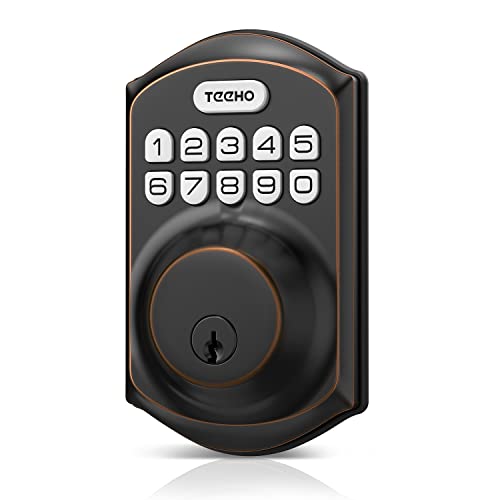
Setting guest codes on smart locks is an essential skill that enhances security while providing convenience to your guests. In this guide, you will learn how to set guest codes safely, ensuring that your property remains secure while allowing authorized access. A quick note on safety: always change codes after guests leave to prevent unauthorized access in the future.
Disclosure: As an Amazon Associate I earn from qualifying purchases at no cost for you.

- 🔓【Remote authorization unlock】 Remotely authorize your family/friends/colleagues to unlo…
- 🔓【Fingerprint Unlock】Your finger is your key, quick unlock in 1 seconds, record up to 20…
- 🔓【Small size and Weatherproof】This mini fingerprint padlock with 0.4 CM diameter stainle…
What You’ll Need
- Smart lock device with guest code functionality
- Smartphone or tablet with the corresponding app installed
- Internet connection for remote access (if applicable)
- List of guests who will need access
Step-by-Step
- Download and Install the App: Begin by downloading the app associated with your smart lock. Follow the installation instructions and create an account if needed.
- Add Your Smart Lock: Open the app and follow the prompts to add your smart lock. This usually involves scanning a QR code or entering a serial number.
- Access the Guest Code Feature: Navigate to the settings or guest access section within the app. This is where you will find options to set up guest codes.
- Create Guest Codes: Select the option to add a new guest code. Input a unique code for your guest, ensuring it is easy for them to remember but hard for others to guess.
- Set Time Restrictions: If your smart lock supports it, set specific time frames during which the guest code will be valid. This ensures access is limited to the agreed-upon duration.
- Share the Guest Code: Communicate the guest code to your visitor securely, preferably through a direct message or phone call. Avoid sharing it on social media or in public forums.
- Monitor Access: Use the app to monitor who has accessed your lock using the guest code. This can help you keep track of guests and ensure no unauthorized access occurs.
- Change Codes After Use: Once your guest has left, promptly change the guest code to maintain security. This can usually be done easily through the app.
Pro Tips for Better Results

- 🔓【Remote authorization unlock】 Remotely authorize your family/friends/colleagues to unlo…
- 🔓【Fingerprint Unlock】Your finger is your key, quick unlock in 1 seconds, record up to 20…
- 🔓【Small size and Weatherproof】This mini fingerprint padlock with 0.4 CM diameter stainle…
- Use complex codes that include a mix of numbers and letters for enhanced security.
- Regularly update guest codes, especially if you frequently have new visitors.
- Utilize the remote authorization feature if available, allowing you to grant access from anywhere.
Common Mistakes
- Not changing guest codes after visitors leave, which can lead to unauthorized access.
- Using easily guessable codes like “1234” or “0000”.
- Failing to monitor access logs, which can help in identifying any suspicious activity.
Troubleshooting
- If the guest code isn’t working, ensure that the guest is entering it correctly and within the valid time frame.
- Check the smart lock’s battery status if it does not respond to the code entry.
- Restart the app or the smart lock if you encounter connectivity issues.
Maintenance / Next-Time Checklist
- Regularly check the battery life of your smart lock and replace it as necessary.
- Review access logs periodically to ensure only authorized individuals have access.
- Update the app to the latest version to benefit from security patches and new features.
Recommended Products & Tools
Consider using smart locks like the eLinkSmart Gym Locker Padlock, which features remote authorization and fingerprint unlock capabilities. This lock allows you to manage guest access efficiently, recording who accessed it and when, which enhances security. Additionally, its weatherproof design makes it suitable for both indoor and outdoor use.
FAQ
- Can I set multiple guest codes? Yes, most smart locks allow you to set multiple guest codes for different users.
- What if I forget my admin code? You will need to reset the lock, which typically requires physical access to the lock.
- Are guest codes secure? Yes, guest codes can be secure if they are complex and regularly updated.
- Can I revoke access to a guest code? Yes, you can easily revoke access through the app by deleting the guest code.
- Is it safe to share guest codes? It is safe as long as you share them securely and change them after use.

- 🔓【Remote authorization unlock】 Remotely authorize your family/friends/colleagues to unlo…
- 🔓【Fingerprint Unlock】Your finger is your key, quick unlock in 1 seconds, record up to 20…
- 🔓【Small size and Weatherproof】This mini fingerprint padlock with 0.4 CM diameter stainle…
Wrap-Up
Setting guest codes on smart locks is a straightforward process that can significantly enhance security and convenience for both you and your guests. By following the steps outlined in this guide, you can ensure that your smart lock is used safely and effectively. Remember to regularly monitor access and update codes to maintain a secure environment.
Recommended Products & Tools
- 🔓【Remote authorization unlock】 Remotely authorize your family/friends/colleagues to unlo…
- 🔓【Fingerprint Unlock】Your finger is your key, quick unlock in 1 seconds, record up to 20…
- 🔓【Small size and Weatherproof】This mini fingerprint padlock with 0.4 CM diameter stainle…