Fix Wifi Issues With Streaming Devices
In this guide, you will learn how to troubleshoot and resolve common Wi-Fi issues that can hinder your streaming experience. By following these steps, you can ensure smoother streaming and better connectivity with your devices. Always ensure your devices are powered off during troubleshooting to avoid any electrical issues.
Disclosure: As an Amazon Associate I earn from qualifying purchases at no cost for you.
Editor’s Pick
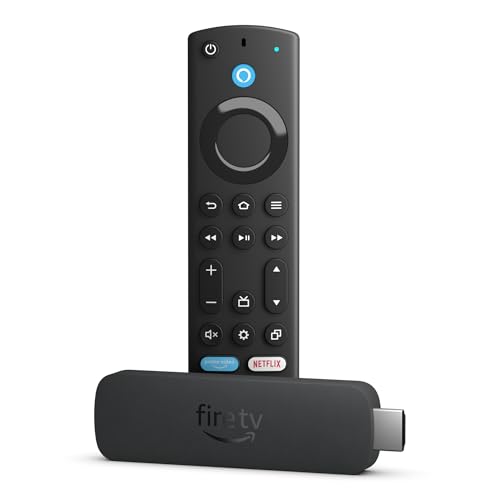
Like-New Amazon Fire TV Stick 4K Max streaming device, with AI-powered Fire TV Search, supports Wi-Fi 6E, free & live TV without cable or satellite
- Like-New Amazon Fire TV Stick 4K Max is refurbished, tested, and certified to look and w…
- Elevate your entertainment experience with a powerful processor for lightning-fast app s…
- Play Xbox games, no console required – Stream Call of Duty: Black Ops 7, Hogwarts Legacy…
What You’ll Need
- Streaming Device (e.g., Amazon Fire TV Stick 4K Max)
- Wi-Fi Router
- Smartphone or Computer for App Controls
- Ethernet Cable (optional)
- Wi-Fi Hotspot Device (optional, e.g., KuWFi 4G LTE)
- Network Troubleshooting Apps (optional)
Step-by-Step
- Check Your Internet Connection: Start by connecting your smartphone or computer to the same Wi-Fi network as your streaming device. Run a speed test to ensure your internet connection is stable and fast enough for streaming.
- Restart Your Streaming Device: Unplug your streaming device from the power source, wait for about 30 seconds, and then plug it back in. This can help refresh its connection to the network.
- Restart Your Router: Unplug your Wi-Fi router, wait for about 30 seconds, and then plug it back in. This can resolve many connectivity issues by resetting the network.
- Check Wi-Fi Signal Strength: Move your streaming device closer to the router to see if the signal improves. If you have a Wi-Fi 6E capable device like the Fire TV Stick 4K Max, ensure your router also supports it for better performance.
- Use a Wired Connection: If possible, connect your streaming device directly to the router using an Ethernet cable. This can eliminate Wi-Fi interference and provide a more stable connection.
- Adjust Router Settings: Log into your router settings through a web browser. Change the Wi-Fi channel or frequency band to reduce interference from other networks.
- Update Device Firmware: Ensure that your streaming device and router have the latest firmware updates. Check the manufacturer’s website or the device settings for any available updates.
- Try a Wi-Fi Hotspot: If your home Wi-Fi is unreliable, consider using a mobile Wi-Fi hotspot device like the KuWFi 4G LTE. This can provide a more stable connection in areas with poor broadband service.
Pro Tips for Better Results
Like-New Amazon Fire TV Stick 4K Max streaming device, with AI-powered Fire TV Search, supports Wi-Fi 6E, free & live TV without cable or satellite

- Like-New Amazon Fire TV Stick 4K Max is refurbished, tested, and certified to look and w…
- Elevate your entertainment experience with a powerful processor for lightning-fast app s…
- Play Xbox games, no console required – Stream Call of Duty: Black Ops 7, Hogwarts Legacy…
- Position your router in a central location in your home to maximize coverage.
- Keep your router firmware updated to improve performance and security.
- Consider using a Wi-Fi extender or mesh network to enhance coverage in larger homes.
- Limit the number of devices connected to your network during streaming to reduce bandwidth competition.
Common Mistakes
- Neglecting to check if other devices are experiencing the same issues.
- Ignoring firmware updates for either the streaming device or the router.
- Assuming Wi-Fi signal strength is adequate without testing it.
- Connecting multiple high-bandwidth devices while streaming, which can cause buffering.
Troubleshooting
- If your streaming device keeps disconnecting, ensure that it is within range of the router.
- For persistent buffering, consider using an Ethernet connection instead of Wi-Fi.
- Check for any interference from other electronic devices, such as microwaves or cordless phones.
- Reset your streaming device to factory settings if all else fails, but remember to back up your data.
Maintenance / Next-Time Checklist
- Regularly check and update your router firmware.
- Monitor your internet speed periodically to ensure it meets streaming requirements.
- Keep your streaming device clean and free from dust to avoid overheating.
- Evaluate your home network setup for potential upgrades, such as better routers or extenders.
Recommended Products & Tools
- Amazon Fire TV Stick 4K Max: Its support for Wi-Fi 6E ensures faster streaming and better connectivity.
- KuWFi 4G LTE Hotspot: This portable hotspot can provide reliable internet access when your home Wi-Fi fails.
- LAN Ethernet Adapter: Using a wired connection through this adapter can significantly reduce buffering issues.
FAQ
- Q: Why is my streaming device buffering?
A: Buffering can occur due to slow internet speeds, Wi-Fi interference, or too many devices connected to the network. - Q: How can I improve my Wi-Fi signal strength?
A: Move your router to a central location, reduce interference, and consider using Wi-Fi extenders. - Q: Is it better to use Wi-Fi or a wired connection?
A: A wired connection generally provides a more stable and faster internet connection for streaming. - Q: How do I check my internet speed?
A: Use a speed test application or website to check your current download and upload speeds. - Q: What should I do if my device won’t connect to Wi-Fi?
A: Restart both your streaming device and router, and ensure the Wi-Fi password is entered correctly.
KuWFi 4G LTE Unlocked Wi-Fi Hotspot Device| Mobile WiFi Hotspot | Portable WiFi Router with SIM Card Slot for Travel Support B2/B4/B5/B12/B17 for AT&T/T-Mobile

- 【What KuWFi L100US is】a 4G WiFi Hotspot Travel Router With screen display & sim card slo…
- 【Work Mode & Band】4G LTE Router work with 4G to WiFi, Support 4G SIM card. Mainly applic…
- 【Easy to Connect】This Travel Partner WiFi Hotspot is Easy to connect and easy to carry i…
Wrap-Up
By following this guide, you can effectively troubleshoot and resolve Wi-Fi issues with your streaming devices. Regular maintenance and proactive measures can enhance your streaming experience. With the right tools and tips, you can enjoy seamless entertainment without interruptions.
Recommended Products & Tools
Like-New Amazon Fire TV Stick 4K Max streaming device, with AI-powered Fire TV Search, supports Wi-Fi 6E, free & live TV without cable or satellite
- Like-New Amazon Fire TV Stick 4K Max is refurbished, tested, and certified to look and w…
- Elevate your entertainment experience with a powerful processor for lightning-fast app s…
- Play Xbox games, no console required – Stream Call of Duty: Black Ops 7, Hogwarts Legacy…
KuWFi 4G LTE Unlocked Wi-Fi Hotspot Device| Mobile WiFi Hotspot | Portable WiFi Router with SIM Card Slot for Travel Support B2/B4/B5/B12/B17 for AT&T/T-Mobile

- 【What KuWFi L100US is】a 4G WiFi Hotspot Travel Router With screen display & sim card slo…
- 【Work Mode & Band】4G LTE Router work with 4G to WiFi, Support 4G SIM card. Mainly applic…
- 【Easy to Connect】This Travel Partner WiFi Hotspot is Easy to connect and easy to carry i…
LAN Ethernet Adapter with 3 USB Port Hub with OTG USB Power Included for TV Streaming Devices FIRESTICKS, 2nd Gen, 3rd Gen 4K firestick, Expand Storage and More
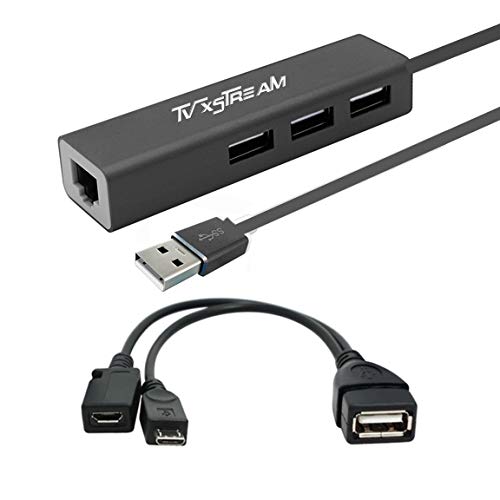
- 3 PORT USB HUB Ethernet Adapter Combo PLUS OTG Cable. Turn your Firestick into a media H…
- The 3 USB Ports allow for additional accessories like Mini Keyboard, Extra storage using…
- Ethernet connection give your firestick a WIRED internet connection. Get a BETTER INTERN…
Victrola Stream Onyx – Wi-Fi Streaming 2-Speed Turntable with Bluetooth Output, Works with Sonos, UPnP Wi-Fi Streaming, Roon Ready Relay, Premium Moving Magnet Cartridge and Aluminum Tonearm (White)

- WORKS WITH SONOS – Seamlessly stream vinyl directly to your entire Sonos system with the…
- BLUETOOTH OUTPUT – Effortlessly switch between Wi-Fi and Bluetooth on this Victrola reco…
- EXPANDED CONNECTIVITY – Connect this Bluetooth record player to even more Wi-Fi speakers…
SAMXI RP-SMA 2T2R Dual Band WiFi 6 2.4GHz 5GHz Antenna Adapter for GIGABYTE Z590 Z690 Z790 X670 570S X570I X570 B760 B760M B760I B650 B650L B650E B550 B550M B450M B560 B560L UD AX AERO D G

- 1.Antenna Gain: 8dbi
- 2.Cable Length: 60cm
- 3.Frequency: 2.4G 5 6G

