Smart Garage Controller Won’t Connect? Try These Fixes
Connecting your smart garage controller can sometimes be a frustrating experience, especially when you rely on it for the convenience of remotely managing your garage door. In this guide, you will learn how to troubleshoot and resolve common connectivity issues with your smart garage controller, such as the CHAMBERLAIN Smart Garage Control. Always prioritize safety when working with electronic devices and ensure your garage door is in a safe position before proceeding with any troubleshooting steps.
Disclosure: As an Amazon Associate I earn from qualifying purchases at no cost for you.
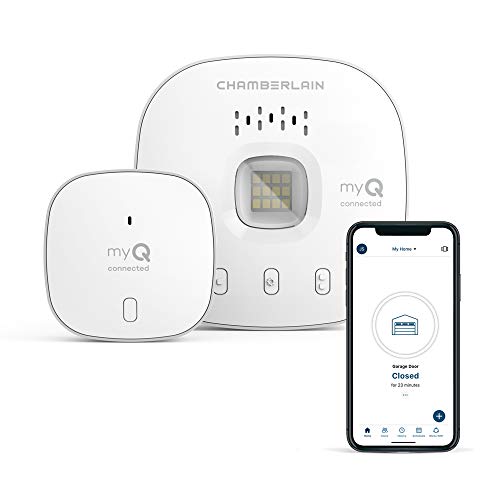
- “Did I shut the garage” No more worrying.
- Open or close your garage from anywhere. Simply download the free myQ app for iPhone or …
- Works with Amazon Key In-Garage Delivery—an exclusive Prime member benefit that protects…
What You’ll Need
- Smart Garage Controller (e.g., CHAMBERLAIN Smart Garage Control)
- Smartphone with the myQ app installed
- Wi-Fi router with 2.4 GHz frequency
- Power source for the controller
- Basic tools (if mounting is required)
Step-by-Step
- Check Power Supply: Ensure that your smart garage controller is properly plugged in and powered on. Look for any indicator lights to confirm that it is receiving power.
- Verify Wi-Fi Connection: Make sure your Wi-Fi router is functioning correctly. Check if other devices can connect to the Wi-Fi network without issues.
- Position the Controller: Ensure that the smart garage controller is within 50 feet of your Wi-Fi router. If necessary, move the controller closer to the router to improve connectivity.
- Check Wi-Fi Frequency: Confirm that your router is broadcasting on a 2.4 GHz frequency, as many smart garage controllers do not support 5 GHz networks.
- Reset the Controller: If the controller still won’t connect, perform a factory reset according to the manufacturer’s instructions. This will clear any previous settings and allow you to set it up fresh.
- Reinstall the myQ App: If issues persist, uninstall and reinstall the myQ app on your smartphone to ensure you have the latest version and clear any potential glitches.
- Reconnect to Wi-Fi: Open the myQ app and follow the prompts to reconnect the smart garage controller to your Wi-Fi network.
- Test Connectivity: Once connected, test the app to ensure you can open and close the garage door remotely. If it works, your setup is successful!
Pro Tips for Better Results

- “Did I shut the garage” No more worrying.
- Open or close your garage from anywhere. Simply download the free myQ app for iPhone or …
- Works with Amazon Key In-Garage Delivery—an exclusive Prime member benefit that protects…
- Keep your router firmware updated to enhance connectivity and security.
- Position your router in a central location to optimize signal strength throughout your home.
- Consider using a Wi-Fi extender if your garage is far from your main router to improve signal strength.
Common Mistakes
- Not ensuring the smart garage controller is compatible with your garage door opener.
- Ignoring the required Wi-Fi frequency settings for the controller.
- Forgetting to update the myQ app, which can lead to connectivity issues.
Troubleshooting
If your smart garage controller still won’t connect after following the above steps, try these additional troubleshooting tips:
- Check your smartphone’s internet connection to ensure it is stable.
- Look for any obstructions that may interfere with Wi-Fi signals, such as thick walls or metal objects.
- Ensure that the garage door opener is functioning properly and that there are no mechanical issues.
Maintenance / Next-Time Checklist
- Regularly check the power supply and Wi-Fi connection.
- Keep the myQ app updated to the latest version.
- Inspect the garage door opener for any signs of wear or malfunction.
Recommended Products & Tools
- Wi-Fi Range Extender: Helps boost the Wi-Fi signal in areas where connectivity is weak, ensuring your smart garage controller can maintain a strong connection.
- Smartphone with myQ App: Essential for controlling your garage door remotely and receiving updates on its status.
- Power Surge Protector: Protects your smart garage controller from power surges, ensuring longevity and reliable performance.
FAQ
1. Why won’t my smart garage controller connect to Wi-Fi?
Common reasons include distance from the router, incorrect Wi-Fi frequency, or power issues.
2. Can I use my smart garage controller with any garage door opener?
Not all garage door openers are compatible. Ensure yours meets the compatibility requirements.
3. How do I reset my smart garage controller?
Refer to the user manual for specific reset instructions, typically involving pressing a reset button.
4. What should I do if my myQ app is not responding?
Try uninstalling and reinstalling the app, or check for updates in your app store.
5. Can I control multiple garage doors with one controller?
Yes, but you may need additional sensors for each door you wish to control.

- “Did I shut the garage” No more worrying.
- Open or close your garage from anywhere. Simply download the free myQ app for iPhone or …
- Works with Amazon Key In-Garage Delivery—an exclusive Prime member benefit that protects…
Wrap-Up
Experiencing connectivity issues with your smart garage controller can be frustrating, but by following the steps outlined in this guide, you can effectively troubleshoot and resolve the problem. Regular maintenance and ensuring proper setup will help you enjoy the convenience of your smart garage system without interruptions. Remember to keep your devices updated and positioned correctly for the best performance.
Recommended Products & Tools
- “Did I shut the garage” No more worrying.
- Open or close your garage from anywhere. Simply download the free myQ app for iPhone or …
- Works with Amazon Key In-Garage Delivery—an exclusive Prime member benefit that protects…